
Tidy Up History Steam Deck & Gamepad Guide
Keep the museum cozy at 60 FPS targets with full controller habits and post-hotfix camera comfort.
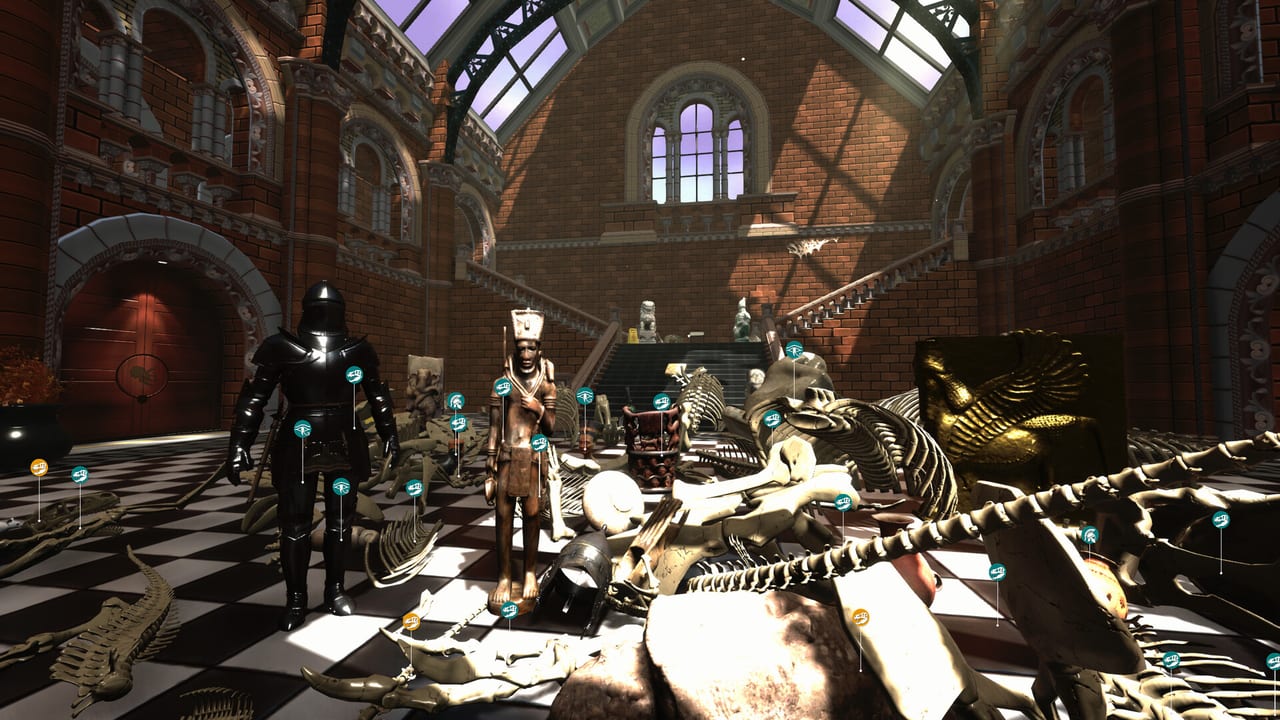
Tidy Up History is a Windows Steam cozy museum sim from Casual Human (app 4870430, released 16 September 2026), but a huge share of players will inherit the museum from a couch or a Steam Deck. Pre-launch, Casual Human announced extensive Deck testing aimed at smooth 60 FPS, full gamepad support, and a store badge that might appear later than the studio’s own readiness work. This guide turns those claims into playable habits—plus the comfort upgrades from Launch Hotfix 1.0.2.
Watch the short museum promo embedded mid-page for tone, then come back for sensitivity, thermals, and key-hunting tips that fit a handheld screen.
What “Deck Ready” means for you
Read the announcement summary on Steam Deck Ready. In short:
- Studio-tested for Deck with a 60 FPS target
- Full gamepad support is a first-class feature, not a community layout afterthought
- Official compatibility badging can lag; smoke-test your own unit anyway
- Launch content still omits the postponed storyline and launch sauropods (Non-Dinosaurian is present; sauropod room later)
Your job as a player is simpler: install the latest build, confirm hotfixes 1.0.1 and 1.0.2 are applied, and spend ten minutes in an early hall before committing a long session.
Desktop 16 GB vs Deck reality
Published minimum PC specs still list 16 GB RAM, Windows 10, i5-2500-class CPU, GTX 1050, DX11, and about 2 GB storage—expanded on System Requirements. That 16 GB line is a density warning for prop-heavy halls. Deck hardware is a different machine, but the lesson transfers: close downloads, limit heavy overlays, and do not assume “cozy” means “zero load.”
If you own both a desktop and a Deck:
- Use desktop for max visual comfort and multitasking.
- Use Deck for lunch-break wings and travel days.
- Remember the game is single-player—no co-op handoff between friends’ devices mid-skeleton.
Full controller fundamentals
Full gamepad support means you can restore without touching mouse and keyboard. Pair this page with Controls for the six core verbs (move, look, interact, place, clean/repair, menus). Deck-specific emphasis:
- Lower look sensitivity for pedestal and fossil seating.
- Stop the stick before confirming place—drift is the enemy of Assembler progress.
- Bind clean and interact to buttons you can reach without shifting grip.
- Use gyro only if you already love it; many curators prefer steady stick aim for labels.
- Quick-access the ability menu so XP from a finished corner gets spent before you open a new wing.
60 FPS comfort settings
Casual Human’s target is smooth 60 FPS. On Deck:
- Start with a 60 Hz / 60 FPS cap if the unit offers it; stability beats unlocked tearing in a tidy sim.
- If a dense wing dips, lower shadows or view distance before cutting resolution so labels stay readable.
- Watch fan curve in Medieval or Mesoamerica-sized prop piles; thermal limits feel like “sudden softness,” not a hard crash.
- Plug in for long Knowledgeable grinding sessions when possible.
Desktop gamepad users can ignore TDP but should still cap FPS if the GPU howls during empty corridor walks.
Hotfix 1.0.2 is a handheld gift
Launch Hotfix 1.0.2 disabled camera bobbing (it caused discomfort), raised camera height, and tweaked mouse sensitivity. Bobbing removal especially helps Deck and couch players who already fight smaller screens and motion sensitivity. After updating:
- Recalibrate look speed even on controller—height change alters how fast the world feels.
- Re-walk a familiar hall once so high-shelf scans match the new camera.
- If nausea lingered from 1.0.0 bobbing, give 1.0.2 a fair twenty-minute retry before quitting the genre for the week.
Hotfix 1.0.1 on a small speaker
Launch Hotfix 1.0.1 made some keys visually hidden and findable via audio cues, after fixing interaction priority that blocked pickups behind ability-gated items. On Deck:
- Prefer headphones over the built-in speaker when hunting Keymaster progress.
- Walk, do not sprint, through suspicious corners.
- Combine audio sweeps with cleaning so you are not “only listening” while dirt still hides props—see Keys and Wings.
Also respect the Porter 2 gate: cleaning skills before Level 5. Handheld sessions that only buy mobility can still softlock socially even after the code fix—spend XP via Abilities and XP.
Session templates for Deck
25-minute commute session
- Boot → spend any pending XP into cleaning.
- Finish one dirty alcove completely.
- Audio-sweep for keys.
- Sleep the Deck at a landmark, not mid-placement.
90-minute evening session
- Orientation lap of your active wing.
- Clean + repair block.
- Knowledge reading on a stable sit (or docked).
- Artifact or skeleton placement with low sensitivity.
- One deliberate key hunt with headphones.
- Note the next hall on your checklist mindset (or mental list).
Docked vs handheld
Docked Deck plus external monitor behaves closer to living-room PC gamepad play: raise look precision slightly if the larger screen helps, but keep placement stops. Handheld mode wants brighter UI, slower pans, and more frequent breaks—eye strain hides clutter.
Content expectations while traveling
Do not expect launch story beats on a train ride; storyline is postponed per the Deck Ready post. Do expect Non-Dinosaurian work instead of sauropods for now. Plan prehistoric time around halls that exist—Museum Rooms and Dinosaur Skeletons explain the live roster.
Achievement hunting on gamepad
All 25 Steam achievements remain relevant on Deck. Systemic trophies (Master Cleaner, Keymaster, Knowledgeable, Museum Owner, and friends) benefit from comfortable bindings more than from raw horsepower. Room-complete unlocks still need the same five-step honesty: clean, repair, study, place, sweep.
Intro −15% pricing through 30 September 2026 is unrelated to Deck performance—buy when your unit passes a smoke test.
Troubleshooting quick list
- Stutters in busy halls: cap 60, lower effects, free RAM/storage, verify files.
- Missed interactions: face the object, stop moving, clear floor clutter first.
- Cannot find keys: headphones + walking sweeps after 1.0.1.
- Motion discomfort: confirm 1.0.2 installed; bobbing should be off.
- Feels underpowered at Level 5: cleaning skills before Porter 2.
Related reading
- Announcement context: Steam Deck Ready
- Patch details: Launch Hotfixes
- Input verbs: Controls
- Specs table: System Requirements
- Launch baseline: Launch Day Notes
Play the promo short, update the build, tune look speed, and let the museum travel with you—dust and all—at a steady sixty when the Deck allows.
Frequently Asked Questions
Quick answers to the most common questions.
Does Tidy Up History support Steam Deck and gamepads?
Casual Human announced Deck testing for 60 FPS and ships full gamepad support. Read Steam Deck Ready and remap via Controls.
Why does the PC minimum still say 16 GB RAM?
That Windows store floor reflects dense halls. See System Requirements even if you primarily play on Deck.
How did Hotfix 1.0.2 help handheld play?
It disabled camera bobbing, raised camera height, and tweaked sensitivity—details on Launch Hotfixes.
Any Deck tip for finding keys after 1.0.1?
Use headphones and walk for audio cues; visually hidden keys are covered under Keys and Wings.
Should I wait for the story on Deck?
No—storyline was postponed from launch. Follow restoration order in the Walkthrough instead.